TEXPERS Events app — quick start
For the printed guide and your phone. Install TEXPERS Events (free). On your home screen the icon reads Events.
Download the app (App Store & Google Play)
Scan a code with your phone camera, or open the link on this device:
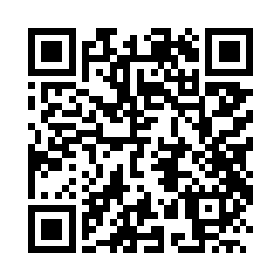 App Store (iPhone / iPad)
apps.apple.com/us/app/texpers-events/id6778642076
App Store (iPhone / iPad)
apps.apple.com/us/app/texpers-events/id6778642076
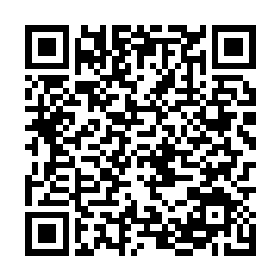 Google Play (Android)
play.google.com/store/apps/details?id=com.simplifios.events.texpers
Google Play (Android)
play.google.com/store/apps/details?id=com.simplifios.events.texpers
Open the Forum and create your TEXPERS Events account
Open TEXPERS Events, choose TEXPERS 2026 Summer Educational Forum from the event list, then create an account or log in when asked.
What you will do:
- Create account with your email and a password (or Log in if you already have a TEXPERS Events account).
- Complete your profile — first name, last name, member type, organization (or “I’m not a member”), and an optional photo when that control is available.
- Then the full app opens. Guests who choose Continue as a guest can browse Home, Agenda, and Sponsors only.
Forgot your password? Tap Forgot password — a 6-digit code arrives by email.
Organizer announcements land in the app’s Messages tab when you open it. Optional lock-screen banners use the masthead Enable updates control (not a random popup) — only after you Allow and see Updates ready. Camera access is requested the first time you scan a badge/QR or add a profile photo.
Find parking with SpotHero (skip the $65 valet)
On-site valet at The Westin starts around $65 + tax per day and fills early. SpotHero shows nearby garages you can reserve in advance — often for less — then walk the River Walk in.
In the app (easiest):
- On Home, look for the gold-bordered card Skip the $65 valet (or use Jump to → Find parking).
- Tap Find & reserve parking.
- Your phone opens SpotHero in the browser for The Westin Riverwalk destination.
- Compare garages and prices → reserve → return to the app when you are done.
Same tools live under bottom bar → Hotel & Area (full three-step card) and under Resources → Reserve parking on SpotHero.
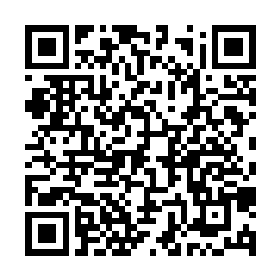 SpotHero · Westin Riverwalk
Build a personalized agenda
Bottom bar → Agenda (swipe the bar sideways if you do not see it).
You start on Full Agenda. On a session, tap + Add (it becomes Saved). Switch to My Agenda for only your picks.
Participate in polls and Q&A
Bottom bar → Engage. When a moderator opens a poll or question period for a session, it appears here and you can take part from your seat.
Polls and Q&A run only when the speaker chooses to use them for their session — if a session doesn't offer one, that's the speaker's format, not a glitch.
Open session materials
Bottom bar → Resources, or open a session’s details for handouts and slides.
Take notes
Open a session and use the notes space while you listen. Notes save as you type.
Complete evaluations
Also under Engage: rate the sessions you attend. It takes a few seconds each.
Please complete these. TEXPERS uses session feedback for continuing-education / PRB accreditation and to shape next year’s programme.
View sponsors, exhibitors, and speakers
Bottom bar → Sponsors for the full paid roster (search by name or focus — private credit, real estate, litigation, and so on). Tap a firm to open its website.
Exhibitors is the exhibit hall; Speakers is the faculty. A logo ribbon may also scroll on Home.
Stay current during the Forum
Primary path: open the app and check Messages for organizer updates (room moves, timing shifts, lunch notes). That works without lock-screen permission.
Optional: on Home, tap Enable updates and choose Allow if you want a lock-screen banner when your phone supports it. You should then see Updates ready. If you do not, you are not missing announcements — use Messages.
Get your free Simpli-FI ID digital card (optional, recommended)
Your free Ambassador card is a digital identity you own — one link that carries your name, role, and contact details into hallway introductions, sponsor follow-ups, and every future TEXPERS event.
The best way: get the Simpli-FI ID app and build your free Ambassador card right inside it, in a few minutes.
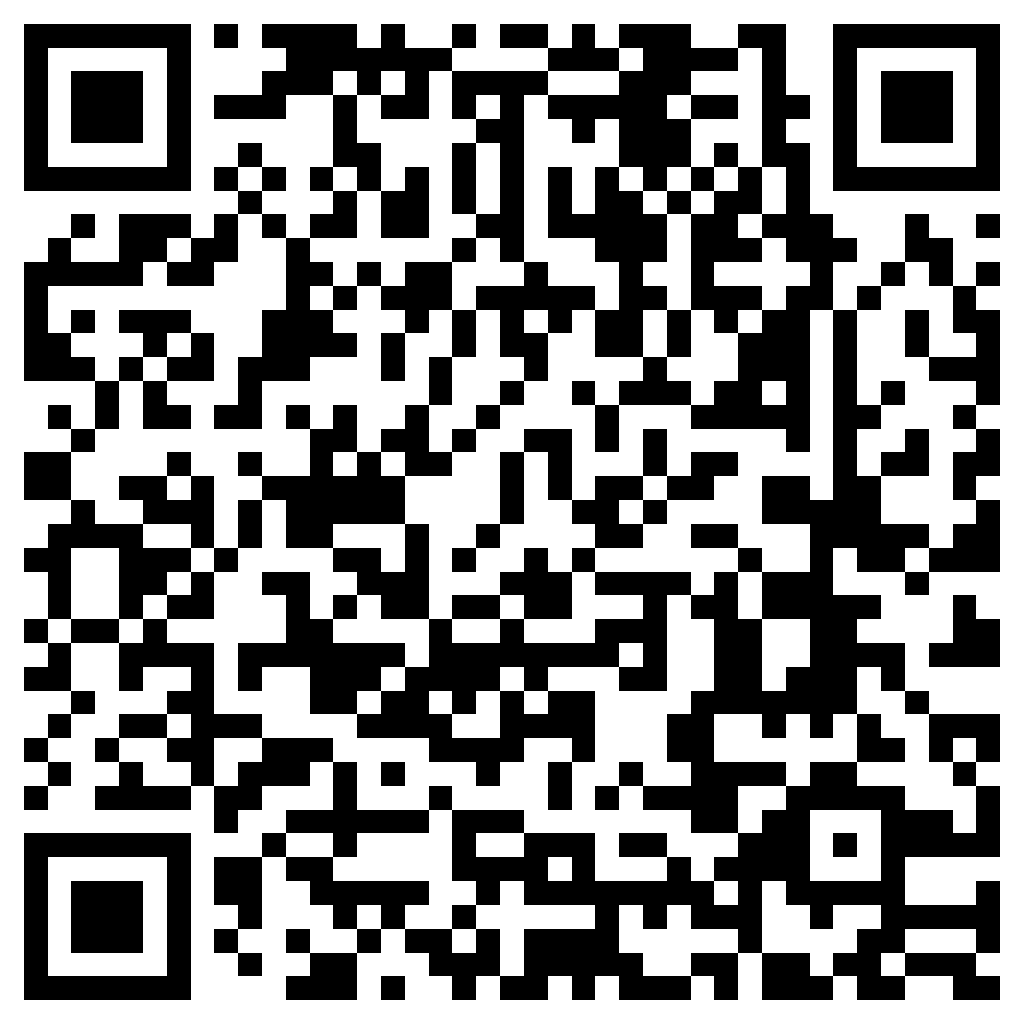 Simpli-FI ID — App Store
apps.apple.com → Simpli-FI ID
Simpli-FI ID — App Store
apps.apple.com → Simpli-FI ID
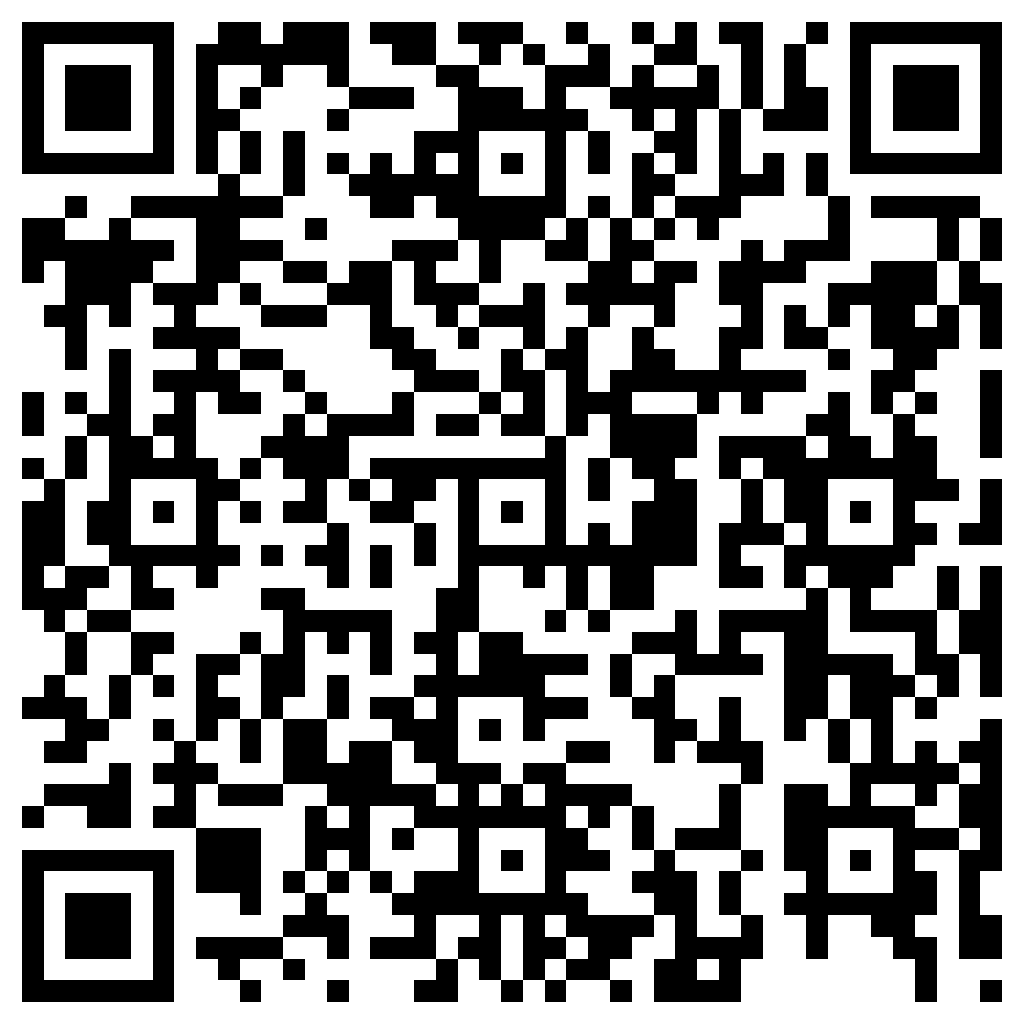 Simpli-FI ID — Google Play
play.google.com → Simpli-FI ID
Simpli-FI ID — Google Play
play.google.com → Simpli-FI ID
Prefer the web? The same free build lives at simpli-fi-id.com/start.
At the Forum, you never have to leave the TEXPERS app: your Badge tab shares your badge, and the scanner reads other attendees' Simpli-FI ID codes for contact exchange — point, scan, done.
If you want more later: Founder and Enterprise tiers add a custom short link of your choosing, a resource library you control, and a substantially deeper contact CRM. Those upgrades live on simpli-fi-id.com when you're ready — the apps themselves stay free.
Things that surprise people (by design)
- Sign-in is a TEXPERS Events account (email + password + profile). It's separate from the website member portal for now — the two merge into one login in the near future. Guests keep Home, Agenda, and Sponsors only.
- My Agenda and notes stay on the phone. They do not sync to the cloud by default.
- Many buttons open the browser. Registration, SpotHero, session PDFs, sponsor sites, and the free ID card all leave the app briefly so you get the real destination — not a half-loaded web view.
- Hotel block rates may not show. Once a room-block window closes, the app omits a stale rate rather than print an expired price. Name, map, phone, and parking remain.
- People / attendee directory may be empty or limited. Networking lists only show when TEXPERS publishes an opted-in roster. Do not expect a full attendee phone book by default.
- Agenda “close to final.” Session titles can still change; the app and this guide never claim the agenda is locked.